Timing Diagram Documentation Features
Realistic Databook Documentation
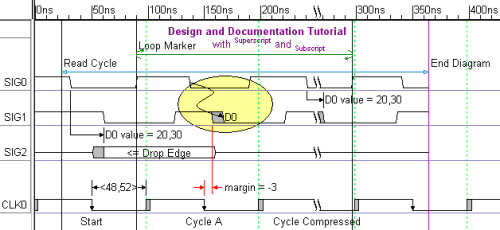
SynaptiCAD's timing diagram editors have
many documentation features that allow you to control
exactly what your timing diagrams look like and what
information is displayed. Many of these features cannot be
found in any other timing diagram editors. The editors
support text objects that are multi-line, with full font,
color and super/subscript controls. Parameters can be
curved or straight and display any of their attributes or
a custom string. Waveforms can have different thicknesses,
line-types, and arrows on the edges. Markers can be used to mark
loops and pipe-line stages.
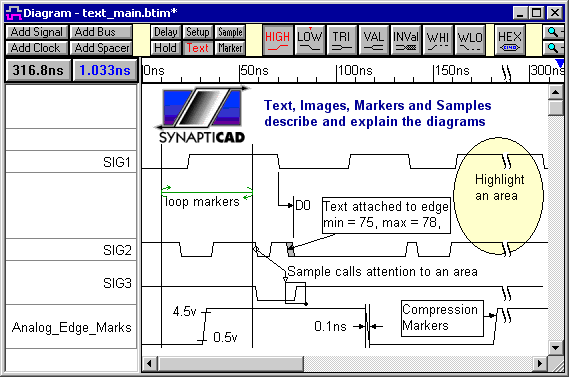
Special events can be
called to attention by attaching a text to the edge.
Special States can have a sample describing the activity.
Text objects can also be used to highlight areas of the diagram. And in DataSheet Pro images (like
logos) can be imbedded directly into the timing diagram.
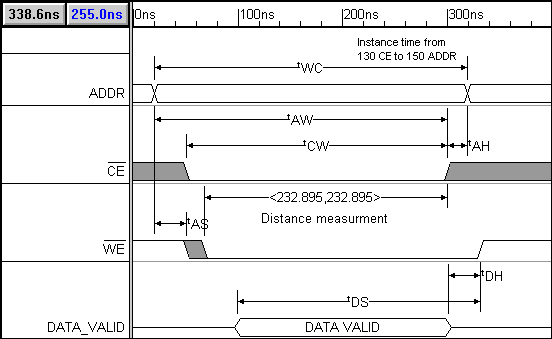
Time breaks for time compression: The time breaks can be used as a graphical display tool or
as a true time compression marker. The compressed time still exists, but is not displayed on the screen.
There are three different styles of time breaks: dotted, curved, and jagged that emulate the most common
time breaks used in data books.
Optional OLE Support
Use Object Linking and Embedding (OLE) to copy and paste different views of
the same timing diagram to the clipboard for use with other programs. Managing images for documentation
has never been easier!
Professional Diagrams
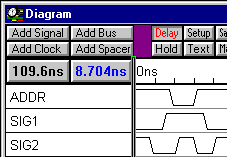
- Vary Signal Name Width: The width of the signal name window can be varied by dragging
& dropping the bar separating the signal names and signal waveforms (nice for printing and image
generation).
- Signals ends snapped to a marker: Signal ends can be snapped to a marker. All
signals can easily end at a common time.
- Text and edge alignment grids can be set with a wide array of options.
- Signal Name Justification: Right & left justify signal names using the Drawing
Preferences dialog.
-
Support for TDML: Over the next two years, on-line data sheets are going to augment or supplant
printed data books. TDML (timing diagram markup language) is the timing diagram and timing parameter
format recommended by the SI2 ECIX committee charged with the defining data sheet standard. With TDML
you will be able to view a data sheet in a browser-like environment then automatically launch a SynaptiCAD
timing diagram editor to display and manipulate the timing information. Keep checking our web site for
updates on the latest TDML information.
- Text and edge keyboard nudging: Use the arrow keys to move a selected text object
one grid square in any direction.
- Smart Print Settings: When the File > Print Diagram menu option
is selected, the Print dialog range defaults to the End Diagram Marker, or if there is no such
marker then to the last drawn edge.
- Show Attachments to Hidden Signals: A new option in the Drawing Preferences
dialog allows attachments to signals like text objects and markers to continue to be displayed even
when their parent signal is hidden. This lets you create data-book quality diagrams, by using signal
segments to line-up and center text without showing the signal segment.
- Grid Lines: Gridlines are available on all signals and clocks. Also, grid lines
can have starting and stopping signals. Clock grids are accessed through the Signal Properties
dialog.
Print or Embed Images into Documents
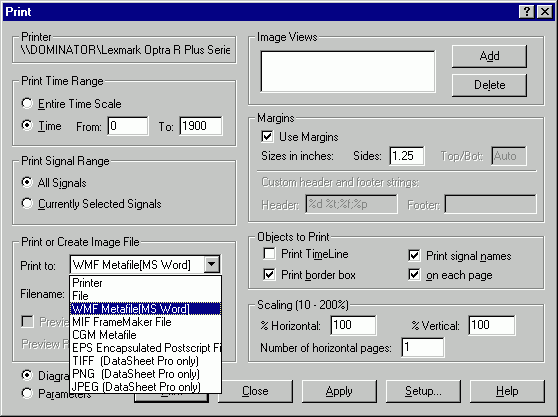
Inserting timing diagrams into word processors is easy with WYSIWYG copy-to-clipboard features. For
the creation of publication quality images, the nine following vector image formats are supported:
- SVG Scalable Vector Graphics File
- WMF metafiles (these are written to a file and put on the clipboard where the Paste command
can be used to insert the image into MS Word)
- MIF files for FrameMaker (editable from inside FrameMaker)
- EPS files and support for imbedding image previews (good cross-platform support)
- CGM metafiles (editable images for Microsoft Office)
- EMF enhanced metafiles
- Datasheet Pro also includes the ability to print diagrams to pixel and vector image formats;
- TIFF Tagged-Image File Format
- PNG Portable Network Graphics (Royalty free) Image Format
- JPEG Joint Photographic Experts Group compressed image file
|

 Main Menu



